Technical Quirks and Hidden Interface Details in Apple's iPhone Clock App
A rapid-scrolling limit at 4:39 in alarm settings highlights several lesser-known design behaviors built into iOS.
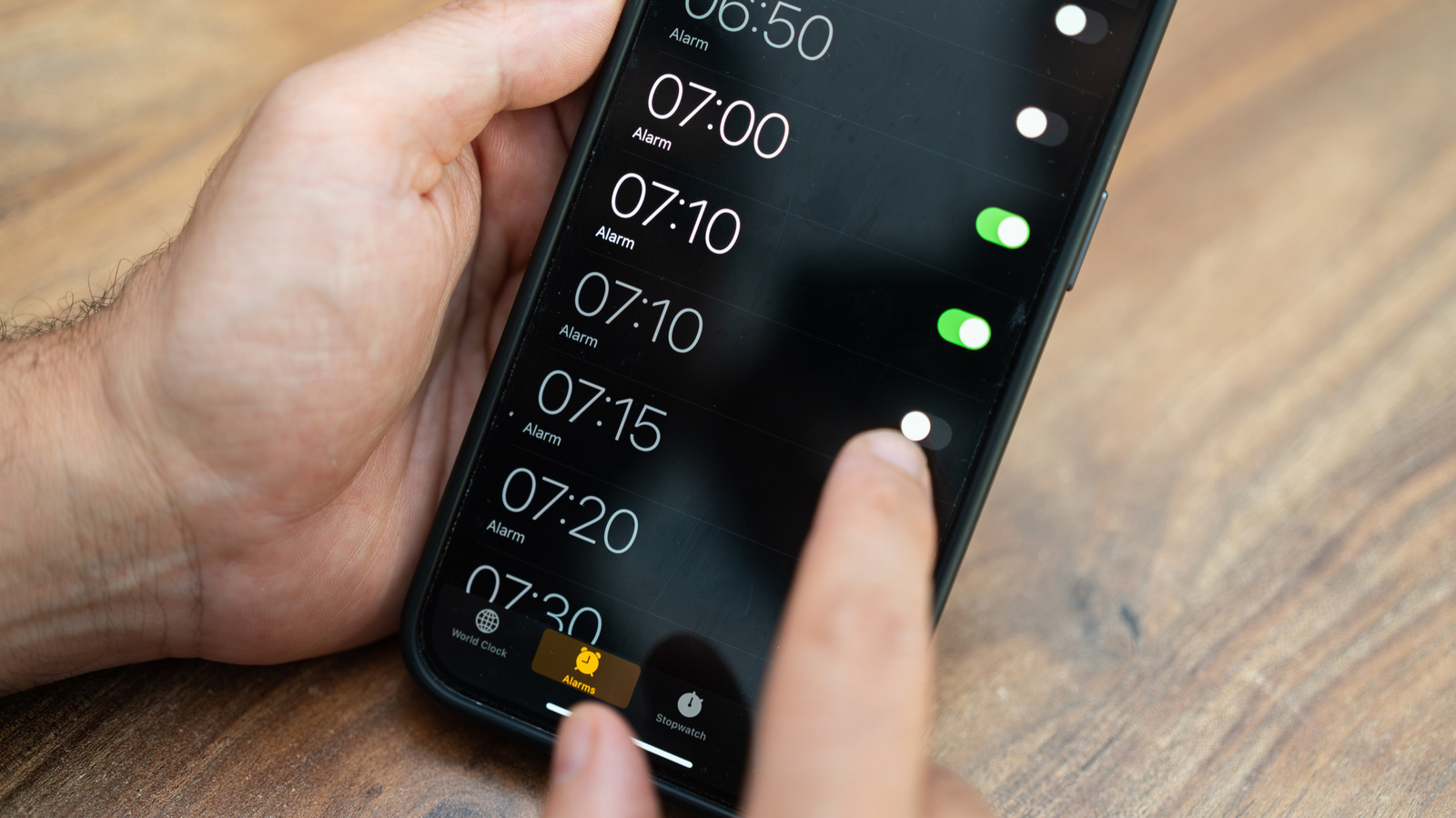
Apple's native Clock application has remained a standard system utility since the original iPhone launched 19 years ago. While the tool is generally viewed as simple and unchanging, an obscure scrolling boundary inside the alarm creation menu gained attention across social media in mid-2025, according to a report by Engadget (https://www.engadget.com/2281209/iphone-clock-app-oddity-time-linear-list/).
When opening the alarm settings and rapidly scrolling through the hour and minute wheels, the interface eventually halts at 4:39. On devices set to 24-hour time, the list terminates at 16:39. Encountering the boundary requires multiple rapid swipes, which explains why typical users rarely encounter it. The stopping point is an interface quirk and does not prevent users from configuring alarms for later times.
Apple has not publicly commented on the reason behind the 4:39 stopping point. Online discussions and developer posts on X suggest the boundary may stem from underlying user-interface framework behavior, such as list rendering constraints in standard iOS TableView elements.
The alarm boundary is accompanied by several other subtle interface mechanics across iOS. Since iOS 7, the Clock app icon on the home screen has operated as a live timepiece, displaying the current hour, minute, and a continuously sweeping second hand without requiring users to launch the app.
In iOS 26.1 and later, Apple added a power-conscious nuance to that icon animation: activating Low Power Mode changes the second hand's motion from a continuous sweep to a once-per-second tick similar to a traditional quartz clock. The change is purely visual and produces no sound.
Additional documented and undocumented interface behaviors exist across the app's other utilities. Inside the Stopwatch tab, swiping across the screen toggles between digital and analog stopwatch faces, a feature documented in Apple's official iPhone user guide. When an iPhone is connected to power and positioned horizontally on its side, iOS activates StandBy mode to display large clocks, widgets, or photos, alongside an optional low-light red-tinted Night Mode for bedside use on devices supporting Always-On Display.
Sources
Written by
The Company Wire
Inside the companies building what’s next. Reporting on startups, technology, funding and the people shaping them.